

Guide
Critical Windows 11 Update Warning: KB5074109 Breaks Outlook & Freezes Desktops
Jan
If your computer has been acting strangely since last Tuesday, do not panic—your hardware is likely fine. The problem lies squarely with the latest Windows 11 update.
Microsoft’s first mandatory patch of the year, released on Patch Tuesday (January 13, 2026), has turned into a nightmare for millions of users globally and in Pakistan. Instead of simply fixing security flaws, update KB5074109 (for versions 25H2 & 24H2) has introduced a “greatest hits” collection of bugs. From Microsoft Outlook refusing to close to a black screen that takes over your monitor, this update is disrupting workflows everywhere.
If you are experiencing desktop freezes or cannot access your email, you are not alone. In this guide, we break down exactly what is broken, why it is happening, and provide a step-by-step tutorial on how to uninstall this problematic update to restore your PC’s performance.
The “Outlook Zombie” Bug: Email Chaos
The most widespread and frustrating issue reported with this Windows 11 update affects users of Classic Outlook, particularly those utilizing POP3 accounts. This bug effectively breaks the functionality of Outlook 365 and standard desktop versions for many users.
The Symptom: A Process That Won’t Die
Normally, when you click the “X” to close your email client, the program terminates. However, after installing KB5074109, Microsoft Outlook becomes a “zombie process.”
- You close the window, and it disappears from your screen.
- However, the process continues running invisibly in the background.
- When you attempt to open the app again later, nothing happens because the operating system “thinks” the application is already open.
Microsoft’s Stance
Microsoft has officially acknowledged this issue but has not yet released a comprehensive fix. They are currently “investigating” the conflict between the update and the Outlook POP3 protocols. Until a new patch is released, users are left to fend for themselves.
The Temporary Workaround
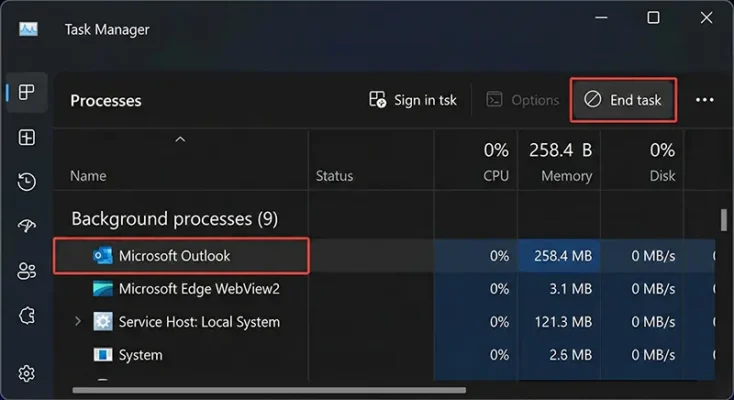
If you rely on Outlook email for your daily work, you do not need to restart your computer every time this happens. You can manually kill the process:
- Open the Task Manager by pressing
Ctrl + Shift + Esc. - Locate the Microsoft Outlook process in the list of active apps.
- Right-click it and select End Task.
- You can now relaunch Outlook successfully.
Note: This is a temporary band-aid. The permanent solution is to perform a rollback of the update (instructions below).
The Black Void & Wallpaper Amnesia
Perhaps the most terrifying bug for the average user is the UI glitch. Immediately after booting up following the Windows 11 update, users are reporting that their desktops are completely unusable.
The Black Screen of Confusion
After entering your password and logging in, instead of seeing your familiar icons and taskbar, you may be greeted by a black screen void.
- This “void” typically lasts for 30 to 60 seconds.
- During this time, the computer appears unresponsive, leading many users to forcibly shut down their PCs, fearing hardware failure.
- Eventually, the icons appear, but the delay is a sign of deep system instability caused by the update.
Wallpaper Reset Bug
For many users in Pakistan who love customizing their desktops, this bug is particularly annoying. The update appears to trigger “Desktop Amnesia.”
Your custom wallpaper may suddenly reset to a solid black color. Even if you go into settings and change it back to your preferred image, it may reset again on the next reboot. This suggests the update is failing to save user profile preferences correctly in the registry.
Folder Amnesia: The Desktop.ini Glitch
While the black screen and email issues are widespread, there is a niche bug affecting power users who organize their files meticulously.
The Issue: Ignoring Customizations
Windows 11 is now ignoring desktop.ini customizations. This is a hidden file in every folder that tells Windows how to display that folder (e.g., giving it a custom icon or a localized name).
What It Means for You
If you have renamed system folders (e.g., changing a generic folder to “Work Projects” using the LocalizedResourceName variable) or applied custom icons to organize your data, the Windows 11 update now ignores them completely.
Your carefully organized “Finance” folder might suddenly appear as “New Folder” or revert to a default yellow icon. While this doesn’t delete your data, it makes navigating your system significantly harder.
How to Fix the Mess: Uninstall KB5074109
While Microsoft released emergency fixes yesterday (Jan 17) for Azure Virtual Desktop and Shutdown bugs, the Microsoft Outlook and Desktop issues remain unpatched in the main release.
If these bugs are destroying your workflow, you cannot wait for the next scheduled update. Your best option is to uninstall the update immediately.
Step-by-Step Removal Guide
If you are ready to remove the headache, follow these steps to perform a rollback:
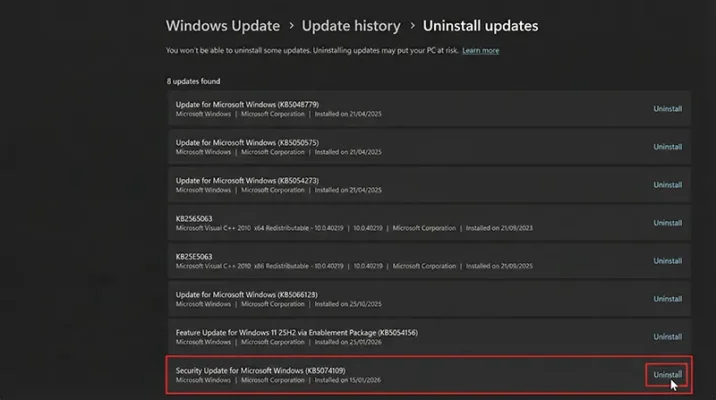
- Open Settings: Click the Start menu and select the Gear icon (Settings).
- Navigate to Updates: Go to Windows Update > Update History.
- Find the Uninstall Option: Scroll down to the bottom of the page and click on Uninstall Updates.
- Locate the Bad Patch: Look for the entry labeled: “Security Update for Microsoft Windows (KB5074109)”
- Execute: Click Uninstall next to this entry.
- Restart: Once the process finishes, Restart your PC to finalize the changes.
Once the computer reboots, your wallpaper should return, and Outlook should close normally.
Should You Pause Your Windows 11 Download?
If you have not yet installed this update, do not install it.
Many users have automatic updates turned on, meaning the Windows 11 download for this patch might be pending in the background. To avoid the desktop freezes and bugs mentioned above, we recommend pausing updates.
How to Pause Updates
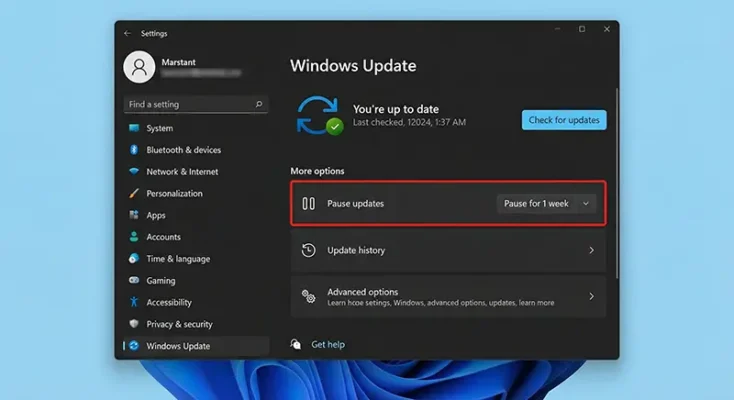
- Go to Settings > Windows Update.
- Click on “Pause for 1 week”.
This gives Microsoft time to push a “Known Issue Rollback” (KIR) or a new patch to properly fix the mess without you having to suffer through it.
Summary
The January Windows 11 update (KB5074109) is a significant misstep. With critical issues affecting Outlook 365, system stability, and user customization, the current recommendation is to avoid or remove it.
Stay tuned to this blog for further updates on when it is safe to update your system again.
Sources
- Microsoft Support: January 13, 2026—KB5074109 (OS Builds 26200.7623 and 26100.7623)
- WindowsLatest: Windows 11 KB5074109 issues: black screen, freezes Outlook POP, breaks Azure Virtual Desktop, LocalizedResourceName (desktop.ini)
Frequently Asked Questions (FAQs)
The January 2026 update (KB5074109) introduced a bug where Outlook fails to close properly. When you exit the app, it remains running as a “zombie process” in the background. Because Windows thinks the app is already open, clicking the icon again does nothing. To fix this, open Task Manager (Ctrl + Shift + Esc), find the Outlook process, and select “End Task”.
If you are facing critical bugs, you can uninstall the update by following these steps:
- Go to Settings > Windows Update > Update History.
- Scroll down and click on Uninstall Updates.
- Locate “Security Update for Microsoft Windows (KB5074109)” and click Uninstall.
- Restart your computer to apply the changes.
The black screen issue is a known glitch in the latest patch where the desktop fails to load for 30-60 seconds.
-
Quick Fix: Press
Windows Key + Ctrl + Shift + Bto restart your graphics driver. -
Permanent Fix: Uninstall update KB5074109 or wait for Microsoft to release a “Known Issue Rollback” (KIR).
Yes, it is safe to pause updates temporarily. If you haven’t installed the faulty KB5074109 patch yet, pausing updates for 7 days is recommended. This prevents your PC from automatically downloading the buggy version and gives Microsoft time to release a fixed patch.
No, uninstalling a Windows update like KB5074109 only removes the system changes made by that specific patch. It does not delete your personal files, emails, or documents. However, it is always good practice to back up important data before performing system changes.
This is a side effect of the UI glitches in the latest update. The update fails to load your user profile settings correctly during boot, causing the wallpaper to reset to a solid black color. Rolling back the update usually restores your original background.
