

Guide
Trapped? How to Fix Windows 11 Error 0x800f0905 & Force Uninstall KB5074109
Jan
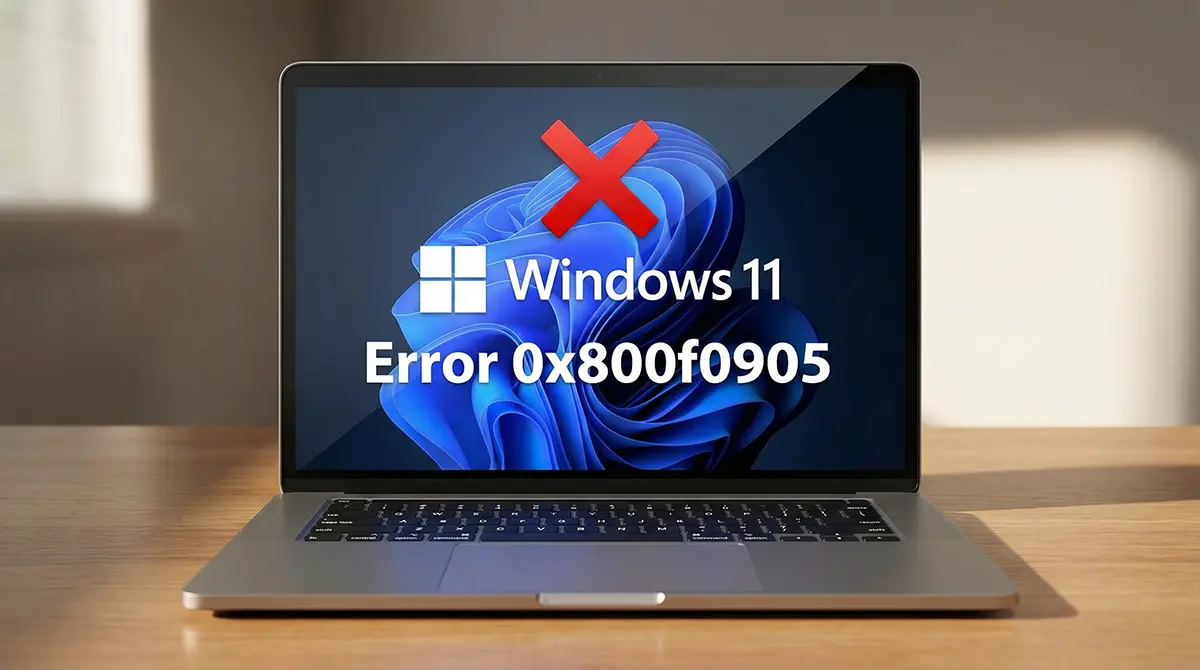
Windows 11 Error 0x800f0905 is currently holding thousands of PCs hostage. Just when we thought the January 2026 update disaster couldn’t get worse, a new nightmare has emerged for users trying to save their systems.
Last week, we warned you about the Microsoft update KB5074109 breaking Outlook and causing the dreaded black screen of death. Naturally, users rushed to remove update files to restore normalcy. But now, a terrifying new problem has surfaced: Windows won’t let you uninstall it.
If you are seeing Error 0x800f0905 when attempting to rollback, you are effectively trapped on a broken version of Windows 11. This guide will explain exactly why this “Servicing Stack” failure is happening and provide you with three proven methods to force uninstall the buggy patch and fix your PC.
The “Jammed Door”: What is Windows 11 Error 0x800f0905?
To understand how to fix this, you must first understand the enemy. Windows 11 Error 0x800f0905 is technically classified as a “Servicing Stack” error.
In plain English, the Servicing Stack is the component of Microsoft Windows that installs and removes updates. Think of it as the door through which all updates pass. The KB5074109 update didn’t just break your apps; it broke the door itself.
When you attempt to remove update KB5074109, the corrupted Servicing Stack cannot process the request. It fails to identify the files correctly, resulting in the 0x800f0905 code. This is why clicking “Uninstall” repeatedly in the Settings menu will never work—you are asking a broken tool to fix itself.

Critical Note: This error is distinct from standard installation failures. This is an uninstallation blockage, which is far rarer and more dangerous because it leaves your system vulnerable and unstable with no easy exit route.
Why Standard Uninstall Methods Are Failing
Many users in Pakistan and globally have reported that standard troubleshooting steps are useless against this specific bug.
- The Symptom: You navigate to Update History > Uninstall Updates, select KB5074109, and the progress bar stalls. Moments later, you receive the message: “An error has occurred. Not all of the updates were successfully uninstalled.”
- The Failures: Running the standard Windows Update Troubleshooter or the
sfc /scannowcommand is reportedly doing nothing to clear this specific blockage.
If you are facing Outlook crashes or a black screen and cannot remove the culprit due to this error, you need to stop using the standard Settings menu immediately. Instead, use the advanced methods below.
Solution 1: The “Safe Mode” Force (Try This First)
Since the standard desktop environment (explorer.exe) is blocking the removal, you need to strip Windows 11 down to its bare essentials. Safe Mode loads only the most critical drivers, often bypassing the corruption that causes Error 0x800f0905.
Step-by-Step Guide:
- Enter Safe Mode:
- Click the Start menu and select the Power icon.
- Hold down the Shift key on your keyboard and click Restart.
- Your PC will boot into a blue menu. Navigate to Troubleshoot > Advanced Options > Startup Settings.
- Click Restart. Once the PC reboots, press 4 to enable Safe Mode.
- Use the Command Line:
- Once in Safe Mode, do not use the Settings app. The graphical interface may still trigger the error.
- Press the Windows Key, type cmd, right-click “Command Prompt”, and select Run as Administrator.
- Execute the Force Uninstall Command: Type the following command precisely:
-
wusa /uninstall /kb:5074109
- Press Enter and wait. The “Windows Update Standalone Installer” (wusa) will attempt to forcibly remove the package without the interference of background apps.
-
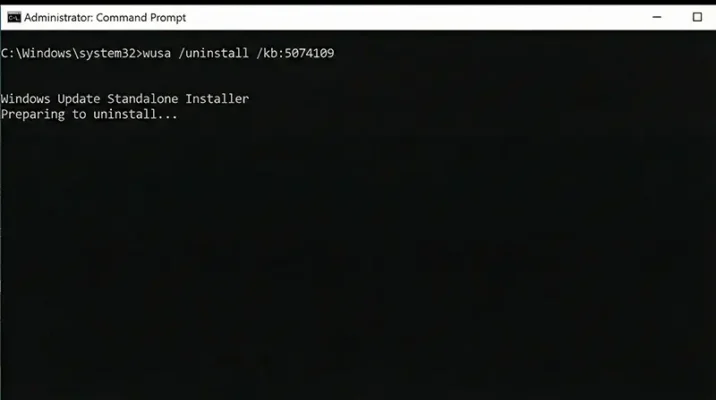
Success Rate: This method is currently working for about 50% of users. If the command returns the same Windows 11 Error 0x800f0905, do not panic. Proceed immediately to Solution 2.
Solution 2: System Restore (The Time Machine)
If the uninstaller is completely broken, you must stop trying to use it. Instead, you need to revert the entire Operating System (OS) state to a point in time before the infection occurred.
System Restore is powerful because it bypasses the “Servicing Stack” entirely. It doesn’t ask the update to uninstall; it simply overwrites the current registry and system files with an older, healthy version.
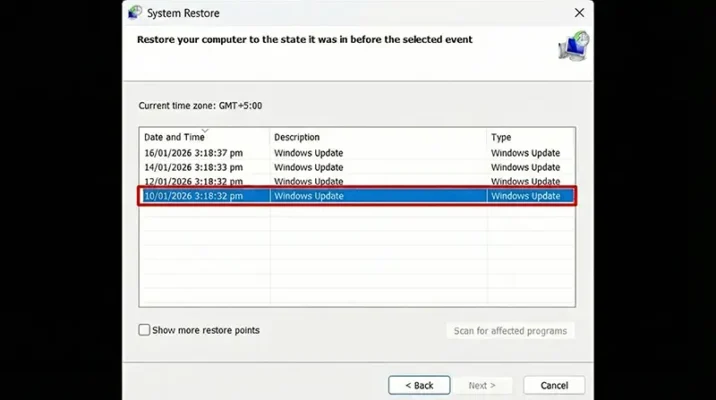
How to Perform a System Restore:
-
Open Recovery Tools:
-
Type “Recovery” in the Start Menu and open the Recovery panel.
-
Select Open System Restore.
-
-
Choose Your Restore Point:
-
The wizard will open. Click Next.
-
Look for a restore point dated before January 13, 2026 (or any date prior to when your PC auto-installed the patch).
-
Tip: If you don’t see older points, check the box that says “Show more restore points.”
-
-
Confirm and Revert:
-
Select the healthy date and click Finish.
-
Your computer will restart and begin the restoration process. This may take 30 to 60 minutes. Do not turn off your PC.
-
This method effectively “time travels” your PC back to when Outlook was working, and the black screen issue did not exist. It is one of the most reliable ways to fix this specific deadlock.
Solution 3: The “Nuclear” Option (Repair Install)
If you have no restore points and Safe Mode failed, you have one painful but necessary option left: The In-Place Repair.
This is the “nuclear” fix for Windows 11 Error 0x800f0905. It involves redownloading the entire Windows operating system and installing it over your current one.
Why This Works:
It keeps your files, personal data, and apps safe, but it completely refreshes the corrupted “Servicing Stack” and system files. It replaces the “jammed door” with a brand new one, allowing you to manage updates again.
Instructions for Windows 11 (24H2/25H2):
- Go to Settings > System > Recovery.
- Look for the option labeled “Fix problems using Windows Update” (This is a specific feature in newer Windows 11 builds).
- Click Reinstall Now.
If you do not see this option, you can achieve the same result by downloading the Windows 11 ISO from the Microsoft website, mounting it, and running setup.exe. Ensure you select “Keep personal files and apps” during the setup.
Vital Prevention: Pause Updates Immediately
Once you have successfully removed the update and fixed Error 0x800f0905, you are not safe yet. Microsoft Windows is aggressive and will attempt to re-download KB5074109 immediately.
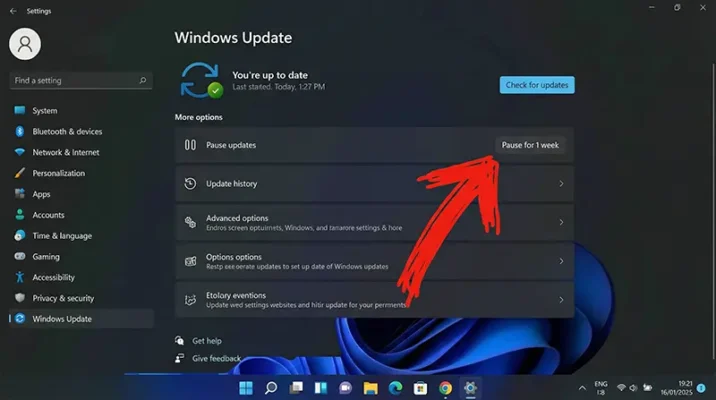
You must block this update to prevent the cycle from repeating.
- Go to Settings > Windows Update.
- Click Pause updates for 1 week (or extend it to roughly 30 days if possible).
- Do not unpause until a confirmed fix—likely named KB5074110—is released in February.
For Outlook Users in Pakistan: If you rely on Outlook for business, this step is critical. The current update instability is causing significant downtime for email services. Pausing updates is the only way to ensure your workflow remains uninterrupted until Microsoft patches the flaw.
Conclusion: The Microsoft Verdict
Microsoft has inadvertently created a “roach motel” update with KB5074109—you can check in, but you can’t check out. The appearance of Windows 11 Error 0x800f0905 during uninstallation is a severe failure of quality control.
If you are currently unaffected, PAUSE UPDATES immediately. Do not let KB5074109 anywhere near your machine. If you are already trapped, the System Restore and Safe Mode methods detailed above are your only reliable escape routes.
Resources
- Microsoft: Windows 11, version 25H2 known issues and notifications.
- BGR: New Windows 11 Security Update Might Have Killed Some Computers.
Frequently Asked Questions (FAQs)
Error 0x800f0905 indicates a corrupted Servicing Stack, meaning the standard uninstall button will not work. To fix this, you must boot Windows 11 into Safe Mode and use the Command Prompt to force removal, or use System Restore to revert your PC to a date before the update was installed.
If the Settings menu fails, you can force uninstall the update using the “wusa” tool. Open Command Prompt as Administrator and type the command: wusa /uninstall /kb:5074109. Press Enter and allow the process to complete. It is best to do this while in Safe Mode to avoid interference from background apps.
The Outlook crashes and black screen issues are direct side effects of the faulty KB5074109 update released by Microsoft. This update conflicts with display drivers and Office 365 components. Removing the update immediately resolves these crashes.
No. System Restore only reverts system files, drivers, and updates to a previous state. Your personal documents, photos, and emails remain safe. However, any apps you installed after the restore point date will be removed and may need to be reinstalled.
If Safe Mode fails, your next best option is an “In-Place Repair.” Go to Settings > System > Recovery and select “Fix problems using Windows Update” (or “Reinstall Now”). This refreshes the Windows operating system files without deleting your data, effectively repairing the corrupted uninstaller tool.
Related Blogs
Critical Windows 11 Update Warning: KB5074109 Breaks Outlook & Freezes Desktops
The latest Windows 11 update (KB5074109) is causing Black Screen errors, Outlook crashes, and wallpaper resets. Here is how to uninstall the bad patch and fix your PC.
Jan
